- MEMBERSHIP
- Join
- Renew
- About Membership
- Membership Types
- Benefits Chart
- Dues Information
- Opening a Bookstore
- Member Directory

 Printer-friendly version
Reporters have two options for manually entering sales data into the Indie Bestseller System. From the main-menu, you will see them listed under the heading of "Manually enter sales data."
Option One: All Titles
You can use this option to report all of your sales information at once.
Using this method, there is no need to presort your sales data into categories. Our database will automatically sort the ISBNs into the correct categories and sub-categories.
Option Two: By Category
You can use this option if your POS system automatically reports your sales based on categories. The categories we report are hardcover fiction, hardcover nonfiction, trade paperback fiction, trade paperback nonfiction, mass market, and children's.
 QUICKSTART Directions
EXPANDED DIRECTIONS for specific POS systems
How to export and upload a file from your POS system.
Please select your POS system from the list below:
Please use this link to upload the file you've just created.
Part I
Part II
Please use this link to upload the file you've just created.
Please use this link to upload the file you've just created.
BookWizard
Step 1: From the Main Menu, select "SKU Activity Report" from the Process drop-down menu. Select the desired date range, and click OK. It is essential to name the Report when prompted. Click Cancel when the Print Dialogue window opens.
Step 2: Immediately go to the Merchandise module (the selection will be the SKUs with sales activity during the period of time selected for the report) and select Print Report from the File drop-down menu. This opens the Report Editor window.
Step 3: Select the ready-made "Report.SKU 6 Mo History" from within the BW Reports folder, delete all of the columns except for "SKU" and the calculation column labeled "C 1Wk," and then saved this modified report as "Report.SKU 1 Wk History" so that in subsequent weeks, it will be ready to go. (Future updates of Bookwizard will include this ready-made report.)
Step 4: Select "Disk File" as "Print Destination" from the File drop-down menu. Then, from the same menu, select Print. You will then be prompted to place and name the file. Save the file in a handy place using a descriptive name. You will see a progress bar as the computer writes an ASCII file onto its hard drive.
Step 5: You've now created a tab-delimited text file that can be uploaded through your web browser (e.g., Internet Explorer or Netscape).
Please use this link to upload the file you've just created.
Note: There is no need to limit the number of ISBNs to only the titles that sold multiple copies. In fact, we would prefer to collect information on sales of single items in order to increase the depth of the bestseller data.
Use the Book Sales Analysis Report in the Sales Analysis sub-system:
Step 1 - Run a single report for all book departments that includes all titles that sold 1 or more copies during the week (Sales From 1 to 99999). Use the Current Week or Back 1 Week depending on whether or not the Weekly Sales Roll has been done. When setting up this report - choose to create a spreadsheet at the "output section" - change the N to a Y for yes in response to both the "Spreadsheet" and "Headings" questions. The pathname I use is: /u/sq1/tmp/indiebound and I reuse the file name "indiebound" each week.
Step 2 - Use FTP (file transfer protocol) to move the file from the "remote system" (mine is: /u/sq1/tmp) to the local system (I send mine to a
specified folder on my C: Drive).
Step 3 - Open the file that you've created - check the dates to make sure it contains the most recent week's sales information - delete all the extra information until you have just 2 columns: ISBN & quantity sold.
Step 4 - Save this file with a name that includes the week ending date. The filename I use is: 01indieboundXXXX - with the last 4 Xs replaced by the week ending date.
Please use this link to upload the file you've just created.
Users should contact Mike Hartman, [email protected], with questions.
|
NOTE: Some reporters using IBID v13.0 and greater may need to include the following procedure in step 7: switch "Include Title" to "N", switch "Include Heading" to "N", switch "Include Details" to "Y", switch "Include Sub-Totals" to "NNN", and switch "Include Grand Totals" to "N". |
8. Press F13 to print the report to a file. Write down the name of the file (it will end with .RFA) and then press Yes. When it asks "Do you want a memo?," press N, and if it asks if you want to append the file, press N. The file is now in IBID and has to get to IndieBound. Escape out to an IBID prompt.
9. Put a blank floppy disk into the IBID computer
10. At the IBID prompt, type COPY then a space, then the file name ending in .RFA then a space and then A: and press enter
The bestseller file should now be on the disk and ready to be uploaded.
Please use this link to upload the file you've just created.
1. From the main PROSE menu, select "Ordering" F3
2. From the "Ordering" menu, select "Review Sales" F1
3. Enter starting and ending dates for the period in question at the prompts.
4. Press F1 to select.
5. When the sales log appears on the screen, press F6 to export.
A file named SALESOUT.DAT will be created in your PROSE directory. This is the file which needs to be uploaded.
Important: Please do not to forget to select "Prose" before submitting your file through this uplod method.
Please use this link to upload the file you've just created.
I. SETUP
You should only need to perform these steps once.
Part One: Creating the Report.
Part Two: Creating the Export Format.
II. WEEKLY REPORTS
Once the above steps are completed, the following procedures can be used each week to generate the files for the Indie Bestseller Lists.
Part Three: Running the Sort
Part Four: Exporting the File to disk.
This will create a file on the disk named "Exinv1.txt" containing a list of ISBN numbers and SKU numbers for the previous week's sales.
Please use this link to upload the file you've just created.
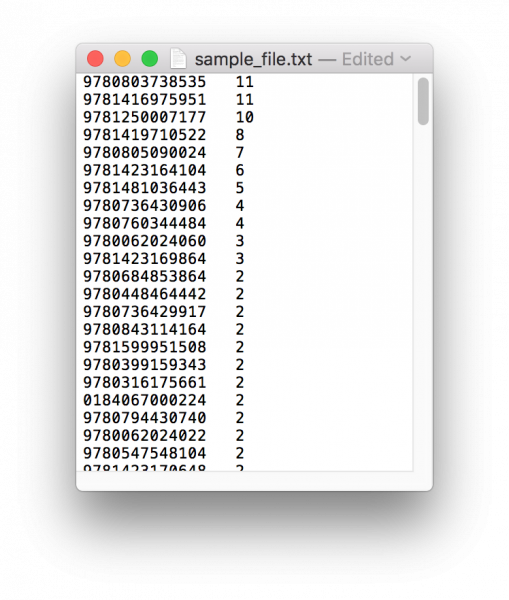
Even if your POS System is not specifically listed in our instructions, this system can still accept an uploaded file provided it is in the correct format.
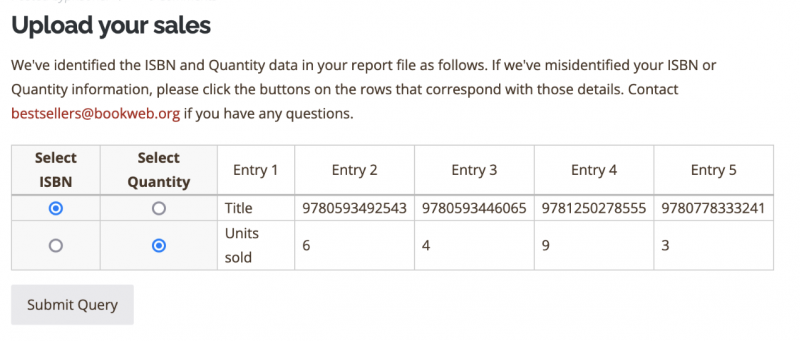
Simply create a report for one week of sales containing only ISBN numbers and quantities (do not include any other data such as price, author, publisher, quantity on hand, etc, as this will cause the upload to fail).
Once you have verified that the report contains only ISBNs and quantities, save it as a .TXT or .CSV file to your disk. When prompted by the reporting system, select this as the file to be uploaded, and click the "Submit" button.
Please use this link to upload the file you've just created.
The American Booksellers Association, a national not-for-profit trade organization, works with booksellers and industry partners to ensure the success and profitability of independently owned book retailers, and to assist in expanding the community of the book.
Independent bookstores act as community anchors; they serve a unique role in promoting the open exchange of ideas, enriching the cultural life of communities, and creating economically vibrant neighborhoods.
PRESS INQUIRIES: [email protected]
INDIECOMMERCE: [email protected]
ALL OTHER INQUIRIES: [email protected]
Copyright 2024 American Booksellers Association. BookWeb is a registered trademark of ABA.
Privacy Policy, Cookie Policy, Accessibility Statement